
Monotote supports in-app integrations for both iOS and Android applications.
Our technology will work out of the box, but some (minor) changes are required to make the experience more seamless. The goal is to show Monotote tools using in-app browsers. This document will provide instructions on how to get widgets for mobile apps and sample PoC code to integrate them.
All PoC sample codes are based on new projects using platform specific IDEs: “Android Studio” for Android and “Xcode” for iOS.
It is recommended to build a method in the target app that accepts URL as a parameter that can be called whenever Monotote is used.
Possible integrations
There are a couple of ways to integrate our tools in mobile applications.
It’s important to understand the 2 sides of a mobile implementation of Monotote:
- Our tools themselves - Showing product information
- The actual checkout on the partner’s websites
Webviews
Webviews allow you to basically ‘embed’ our plugins into mobile applications. This allows for a very seamless and nice integration. The downside is that you need to predict the size of the rendered area (which becomes fixed, it won’t scale up/down) + not all checkout flows are supported.
Example: Product wall
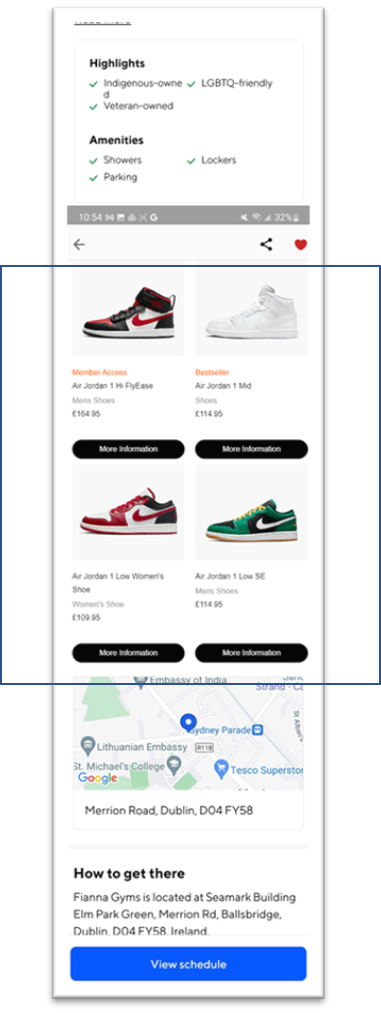
Note - The product wall can be auto loading to scroll through multiple products within that webview.
Example: Shoppable
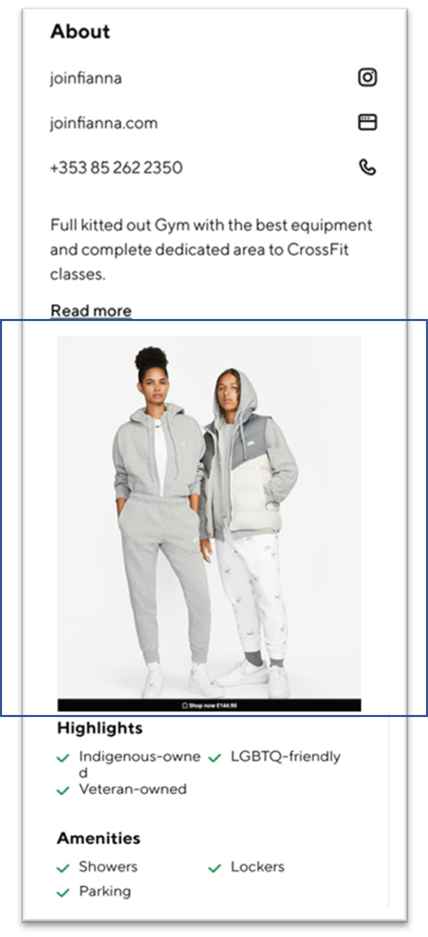
Note
- The banner style buy button as shown in the image or a small button are advised for in app to ensure the buy button does not cover the image for in app.
- The webview rendered area may not fit the shoppable image or product wall exactly leaving a blank area. The background colour can be changed to match to the app to allow it to blend in.
In-app browsers
In-app browsers are basically new windows within the same application. It’s not a new tab in your mobile browser, but a browser window within your application. This is achieved by using Chrome Custom Tabs (on Android) and SFSafariViewController (on iOS).
It requires a call2action such as a button or banner to initiate the browser window.
Example:
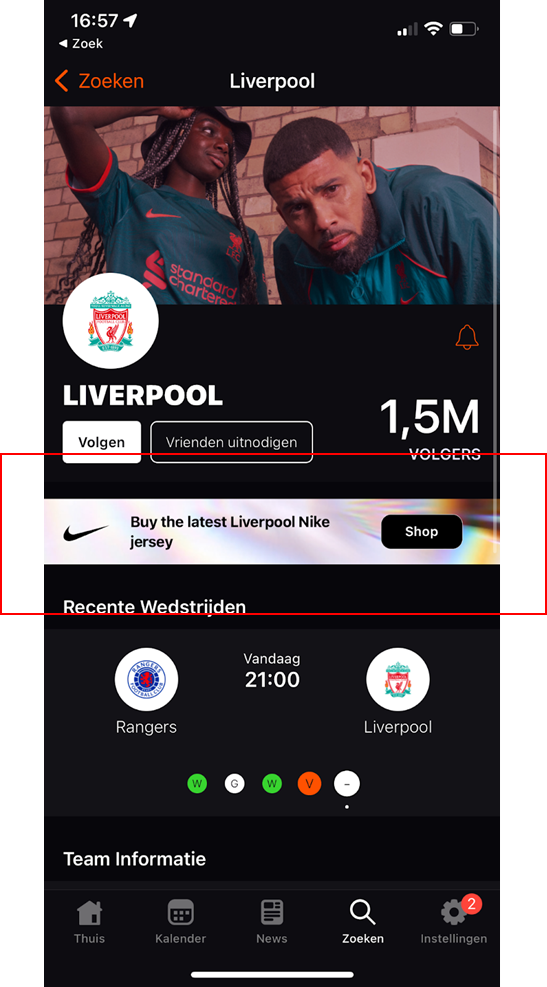
Which then opens the product wall or shoppable image:
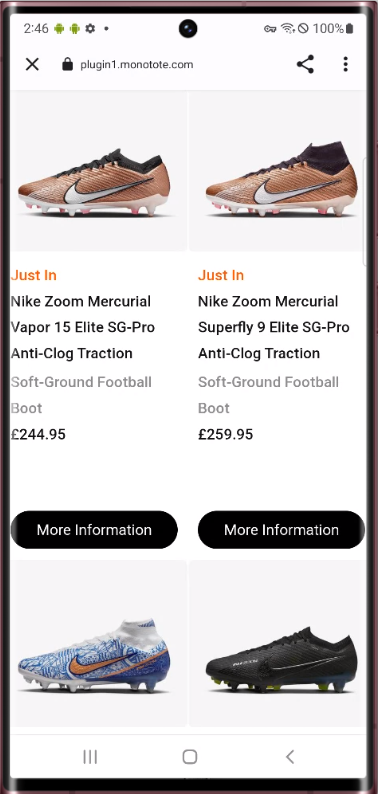
Native implementation
The best of the best. Using our Monotote API’s you can create your own applications 100% as you want.
The biggest downside is that you need to do everything yourself. You won’t be using the tools from our dashboard, you’re basically generating your own frontend based on our API output.
Checkout experiences however will always need to go through in-app browser experiences.
We’re currently working on a Mobile SDK which will make mobile implementations a lot easier.
An overview
In-app browsers (entire screen) | Webviews (fixed predicted dimensions) | Native (custom integration) | |
|---|---|---|---|
| Works through | Monotote plugin | Monotote plugin | Monotote SDK + API |
| Tool: Shop | Supported | Supported | Supported through our SDK or a custom API implementation |
| Tool: Product walls | Supported | Supported | Supported through our SDK or a custom API implementation |
| Checkout: Nike redirects | Supported | Supported | Supported through our SDK o_r a custom API implementation. Our SDK will decide how to proceed with the checkout. |
Checkout: Nexus | Supported | Currently not supported | Supported through our SDK or a custom API implementation. Our SDK will decide how to proceed with the checkout. |
The area for webviews is controllable. It's like a widget just like any other UI item in native apps. Although, in-app browser (don't confuse with webviews) is not controllable, they cover the entire screen of the device.
We currently use webviews for redirects, and in-app browsers for checkouts. Ideally, everything goes through webviews eventually to make the implementation less complex and more native, but we’re currently limited there.
Also, "buy at Nike" uses in-app browser to display Nike website
How to implement our tools
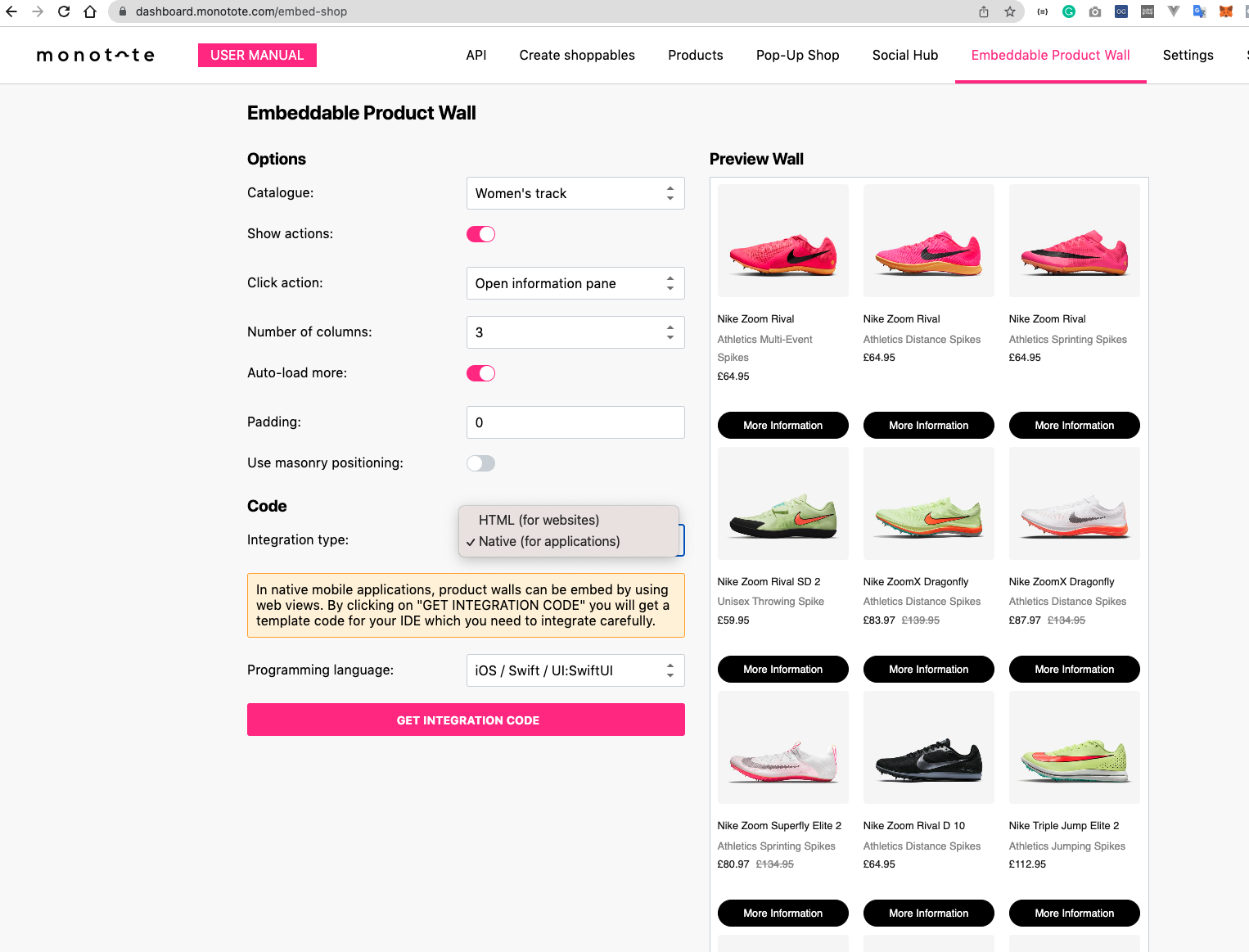
Go to https://dashboard.monotote.com and go to your tool. Configure your tool as you wish (see preview on the right), then select “Native” in the Code section.
You can then choose the programming language you’re application is currently written in.
FYI, we’re currently exploring a possible Monotote SDK for iOS & Android, any feedback/input here is appreciated.
Shops
Access “Pop-Up Shop / Embed Code” from the navigation menu. Select “Embed type” to “Native mobile app embed”.
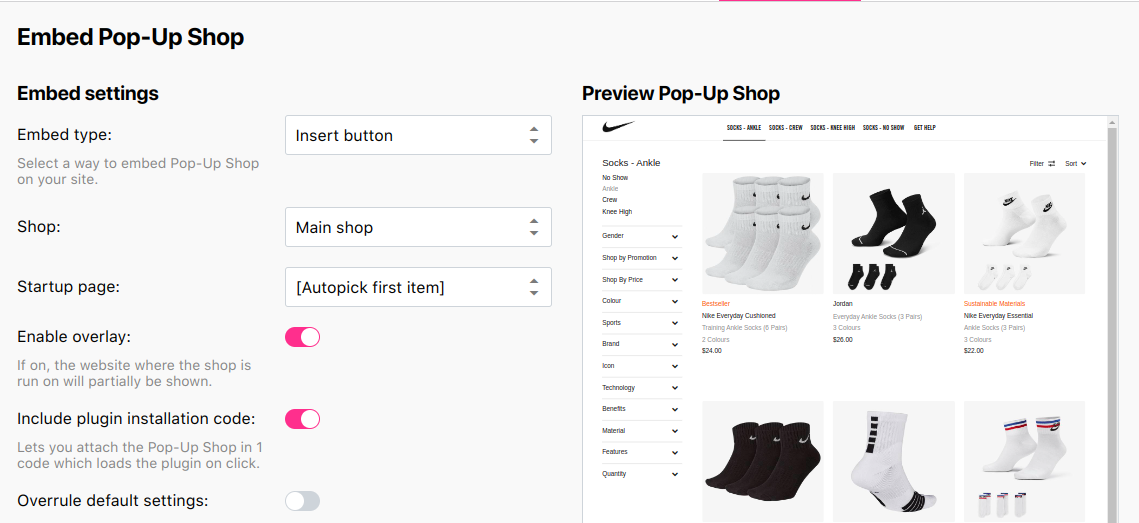
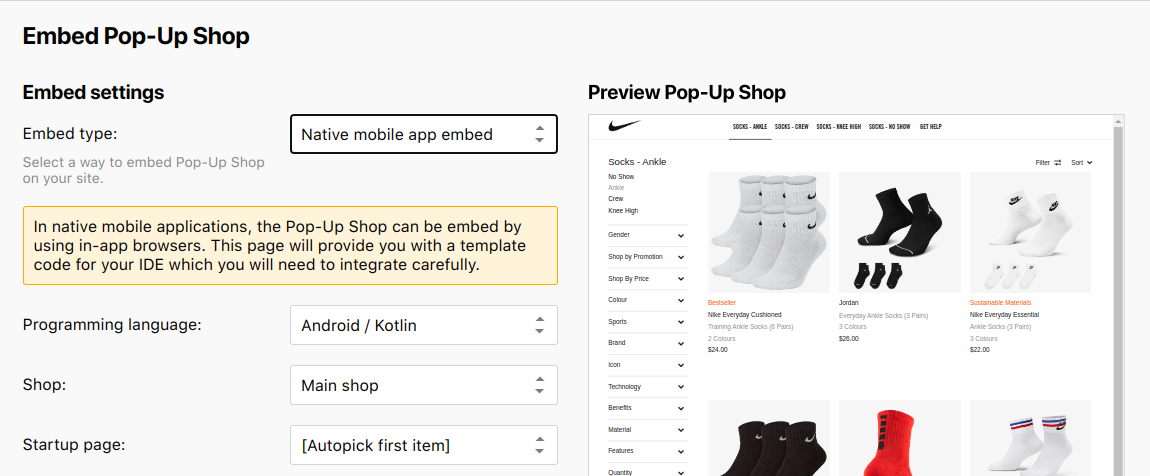
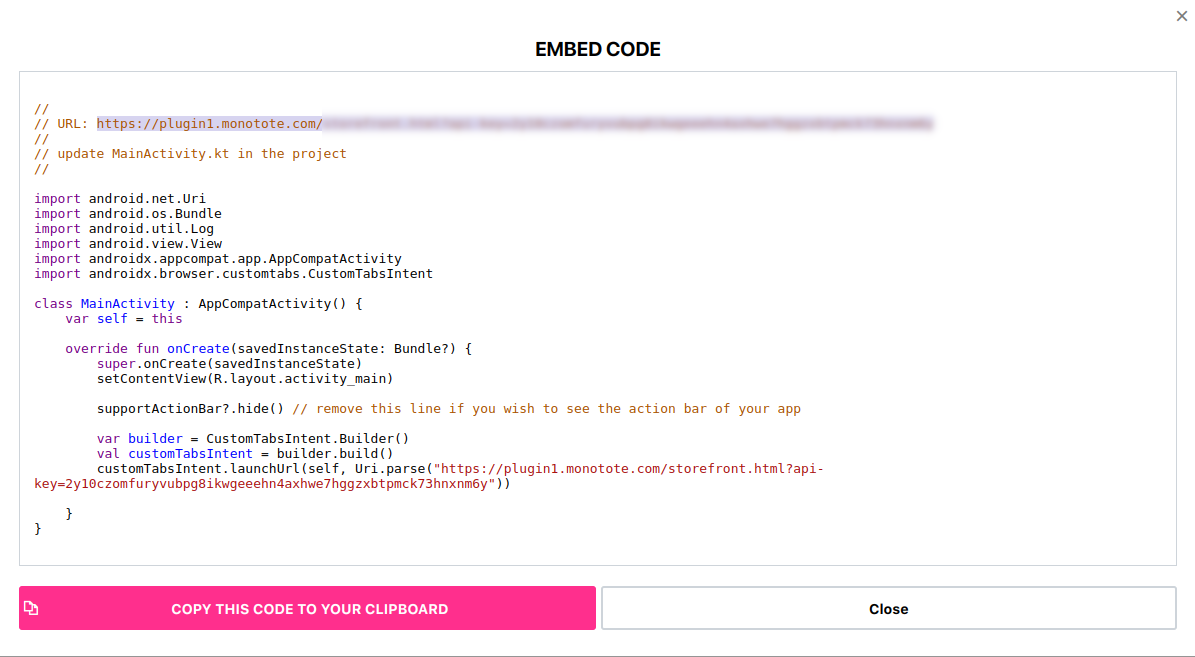
Pick a language / UI kit for the target application. If your target isn’t listed, pick any option there. Then, click on “Get Embed Code”.
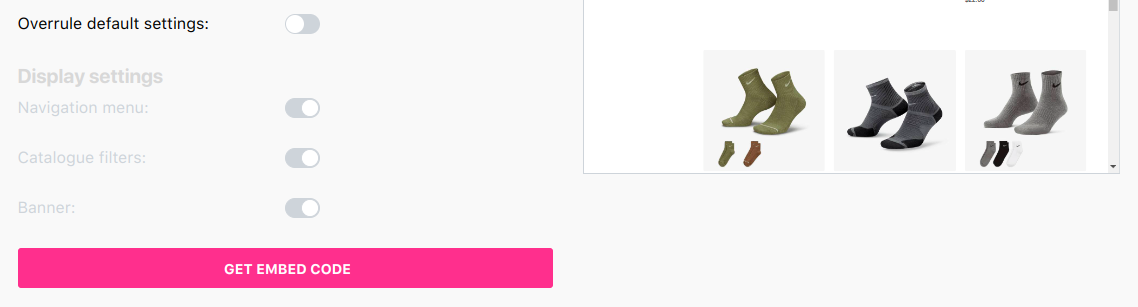
Use the line that mentions URL and place it in a method that opens an in-app browser. The rest of the code is a simple example showing it in action.
Product walls
Access “Embeddable Product Wall” from the navigation menu.
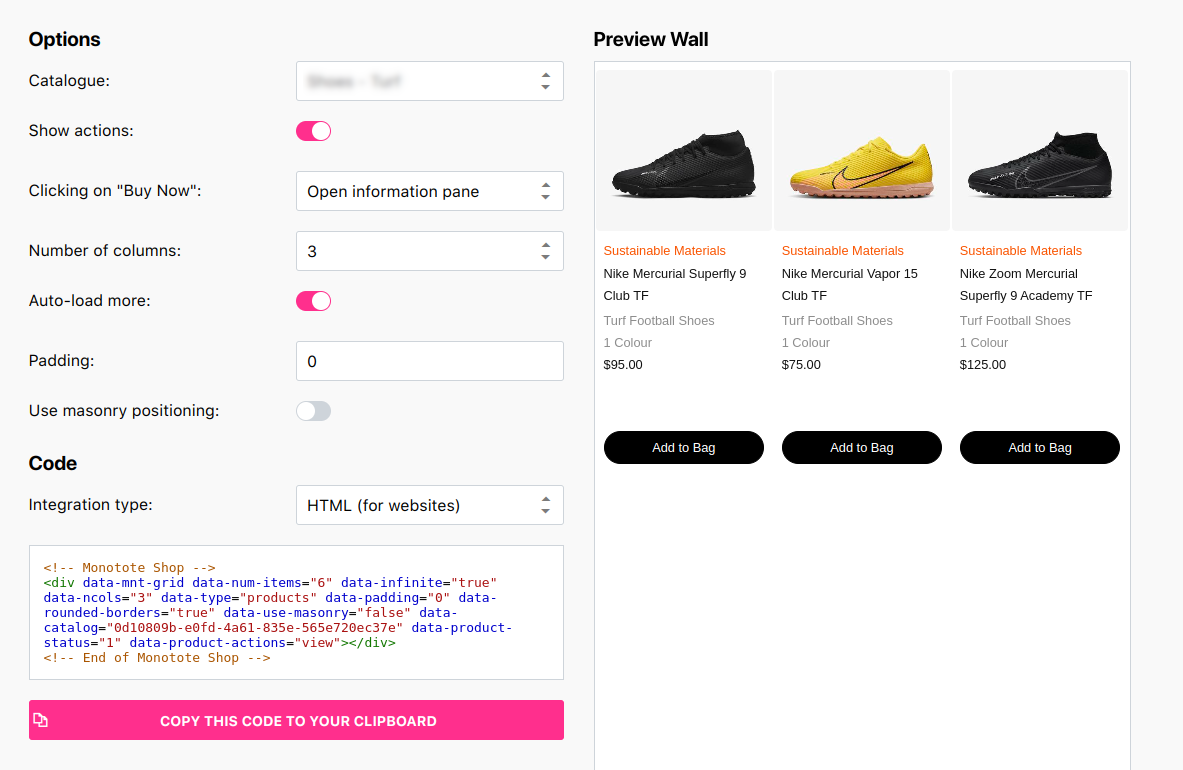
Pick a catalog and customize the wall. Then, switch “Integration type” to “Native (for applications)”.
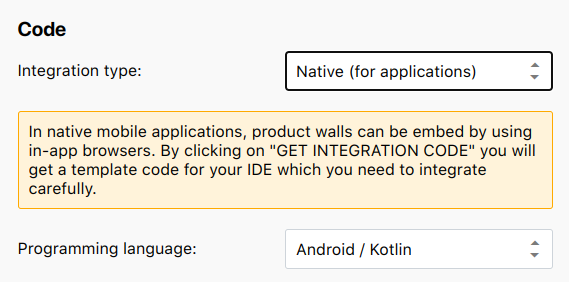
Pick a language / UI kit for the target application. If your target isn’t listed, pick any option there. Then, click on “Get Integration Code”. Use the line that mentions URL and place it in a method that opens an in-app browser. The rest of the code is a simple example showing it in action.
Examples: Webviews
iOS
Language: Swift, UI Kit: Storyboard
//// modify ViewController.swift in the project//import UIKitimport SafariServicesclass ViewController: UIViewController { override func viewDidAppear(_ animated: Bool) { let svc = SFSafariViewController(url: URL(string: "< PASTE URL HERE >")!) present(svc, animated: true, completion: nil) }}Language: Swift, UI Kit: SwiftUI
//// create SafariView.swift in the project//import SwiftUIimport SafariServicesstruct SafariView: UIViewControllerRepresentable { let url: URL func makeUIViewController(context: UIViewControllerRepresentableContext<SafariView>) -> SFSafariViewController { return SFSafariViewController(url: url) } func updateUIViewController(_ uiViewController: SFSafariViewController, context: UIViewControllerRepresentableContext<SafariView>) { }}//// modify the main swift file//import SwiftUI@mainstruct TestApp: App { // replace with your app object var body: some Scene { WindowGroup { SafariView(url:URL(string: "< PASTE URL HERE >")!) } }}Language: Objective-C, UI Kit: Storyboard
//// modify ViewController.m//@interface ViewController ()@end@implementation ViewController- (void)viewDidAppear:(BOOL)animated { SFSafariViewController *svc = [[SFSafariViewController alloc] initWithURL:[[NSURL alloc] initWithString:@"< PASTE URL HERE >"]]; [self presentViewController:svc animated:YES completion:nil];}@endAndroid
Language: Kotlin
//// update MainActivity.kt in the project//import android.net.Uriimport android.os.Bundleimport android.util.Logimport android.view.Viewimport androidx.appcompat.app.AppCompatActivityimport androidx.browser.customtabs.CustomTabsIntentclass MainActivity : AppCompatActivity() { var self = this override fun onCreate(savedInstanceState: Bundle?) { super.onCreate(savedInstanceState) setContentView(R.layout.activity_main) supportActionBar?.hide() // remove this line if you wish to see the action bar of your app var url = "< PASTE URL HERE >" var builder = CustomTabsIntent.Builder() val customTabsIntent = builder.build() customTabsIntent.launchUrl(self, Uri.parse(url)) }}Language: Java
//// modify MainActivity.java in the project//import androidx.appcompat.app.AppCompatActivity;import androidx.browser.customtabs.CustomTabsIntent;import android.net.Uri;import android.os.Bundle;public class MainActivity extends AppCompatActivity { protected void onCreate(Bundle savedInstanceState) { super.onCreate(savedInstanceState); setContentView(R.layout.activity_main); // replace with your view getSupportActionBar().hide(); // remove this line if you wish to see the action bar of your app CustomTabsIntent customTabsIntent = new CustomTabsIntent.Builder().build(); customTabsIntent.launchUrl(this, Uri.parse("< PASTE URL HERE >")); }}More information
For further information regarding support, issues, … please refer to our support website at
https://support.monotote.com or send us an email at support@monotote.com.